StepGoals has always been about building consistent daily movement. Version 2.0 takes that a step further with Sessions, a dedicated GPS tracking mode for individual walks, runs, and workouts. Where the main app tracks your cumulative daily steps, Sessions gives you a focused record of each outing: where you went, how long it took, and what you achieved. It lives in its own tab at the bottom of the app and works independently from your daily step tracking, while still contributing to your overall count through Apple Health.
Setting Up and Starting a Session
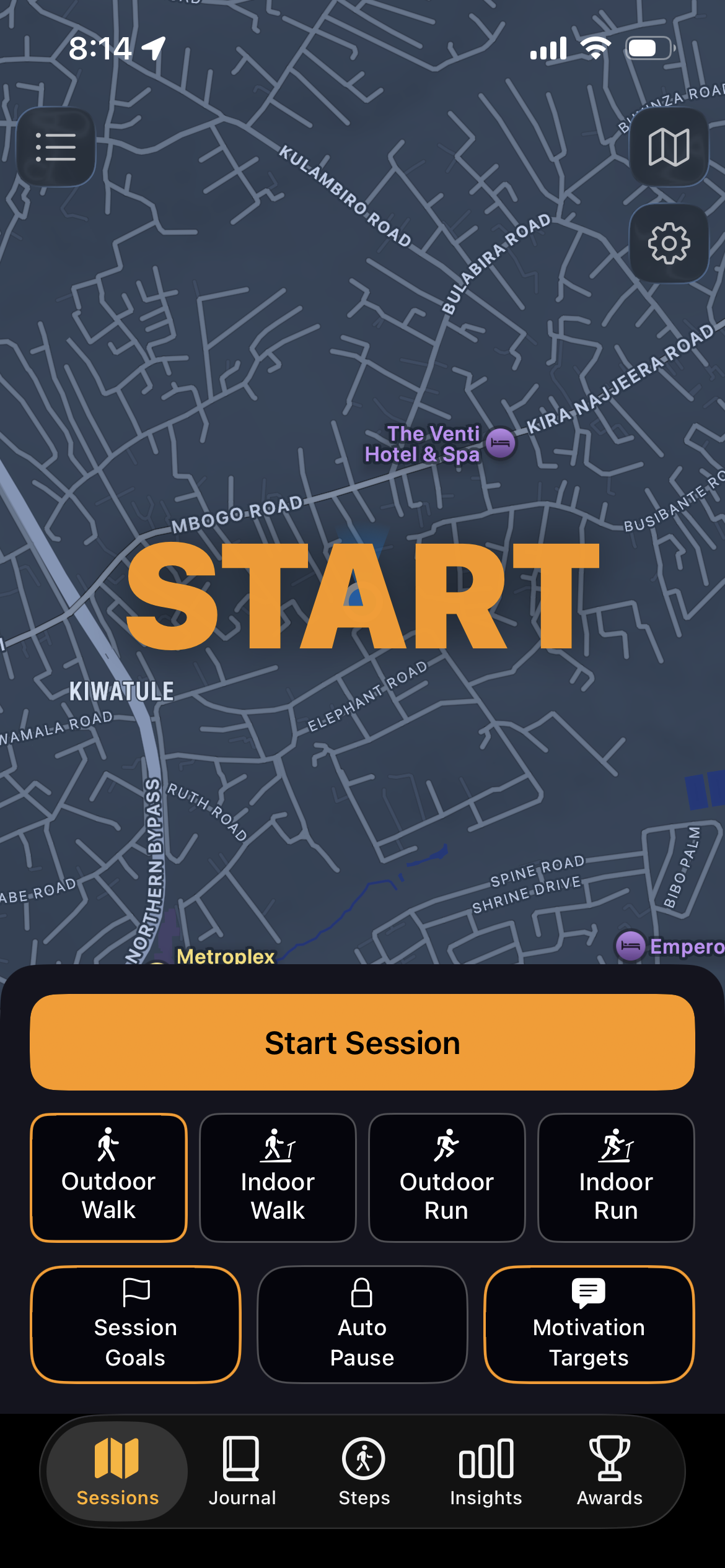
Tap the Sessions tab and you'll see a live map centered on your current location. Before starting, you choose your activity type: Outdoor Walk, Indoor Walk, Outdoor Run, or Indoor Run. Outdoor modes use GPS to trace your route in real time. Indoor modes track your movement using the phone's motion sensors without mapping a route, useful for treadmills, malls, or anywhere GPS isn't relevant or accurate.
Three options sit below the activity selector. Session Goals lets you set a target for your session — a specific step count, distance, or duration to aim for. Once set, a progress bar tracks your advancement toward that target throughout the session. Auto-Pause detects when you've stopped moving and pauses the session timer automatically, so your pace and time figures aren't skewed by traffic lights or photo ops. Motivation Targets activates a smart milestone system inspired by the main app during your session, surfacing achievable intermediate targets to keep you pushing as you go, and show it's always possible to stretch a bit further.
When you're ready, tap Start Session. The map transitions to active tracking mode and your route begins drawing in orange-gold behind you.
During the Session
While a session is active, your live stats, steps, distance, time, and calories — update continuously on screen. If you set a session goal, the progress bar fills as you close in on your target. Motivation Targets appear at calculated intervals, giving you a near-term number to chase rather than a distant finish line. You can pause and resume at any point, or end the session when you're done. You can also adjust settings during a live session if you choose.
The GPS route builds on the map in real time, drawing your path as a bright orange line. When you finish and look back at where you went, that visual record is one of the more satisfying things the feature produces, especially on routes with interesting shapes, loops, or neighborhoods.
The Session Summary
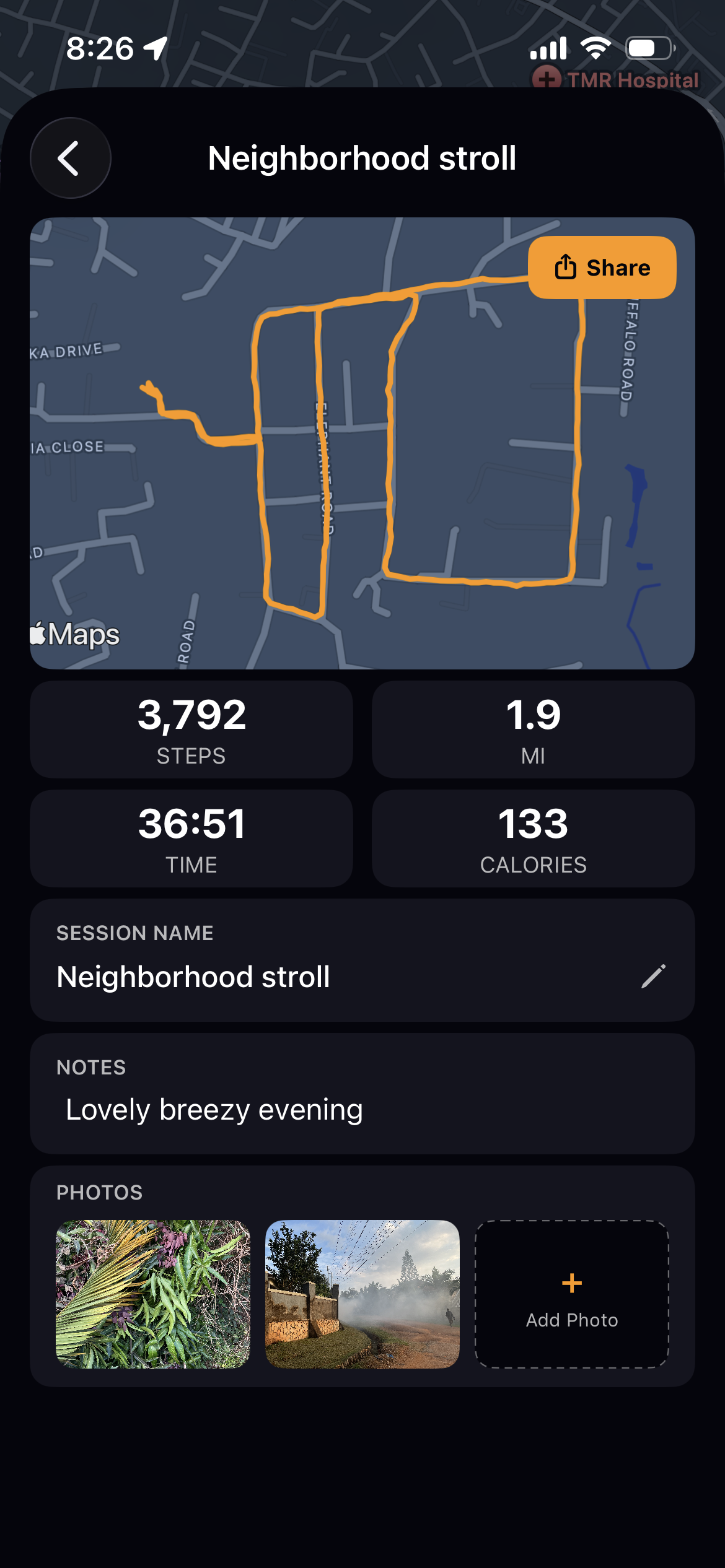
When you end a session you're taken to a summary screen. It shows your complete route map, total steps, distance, time, and calories. From here you can name the session, write notes about how it went, and add photos associated with the outing. You can save the session to your history or discard it — nothing is committed until you choose to save.
The notes and photo fields are worth using. A walk that gets a name and a few words attached to it — "evening loop around the park," or "first run in my new neighborhood" becomes a memory rather than just a data point. Photos reinforce that further, turning a session record into something you'll actually want to revisit and share.
Download StepGoals free and start tracking your walks and runs with GPS Sessions today.

Session History
Every saved session is stored in your history and accessible anytime from the Sessions tab. Each entry shows the route map, full stats, your session name, any notes you wrote, and the photos attached to it. You can add or remove photos from a saved session after the fact, useful if you took photos on your phone during the walk and want to attach them later. Sessions are ordered chronologically so your history builds into a genuine record of your activity over time. The session history also shows the grand total steps of all your sessions so you can marvel at your culmulative achievement.
Sharing Your Sessions
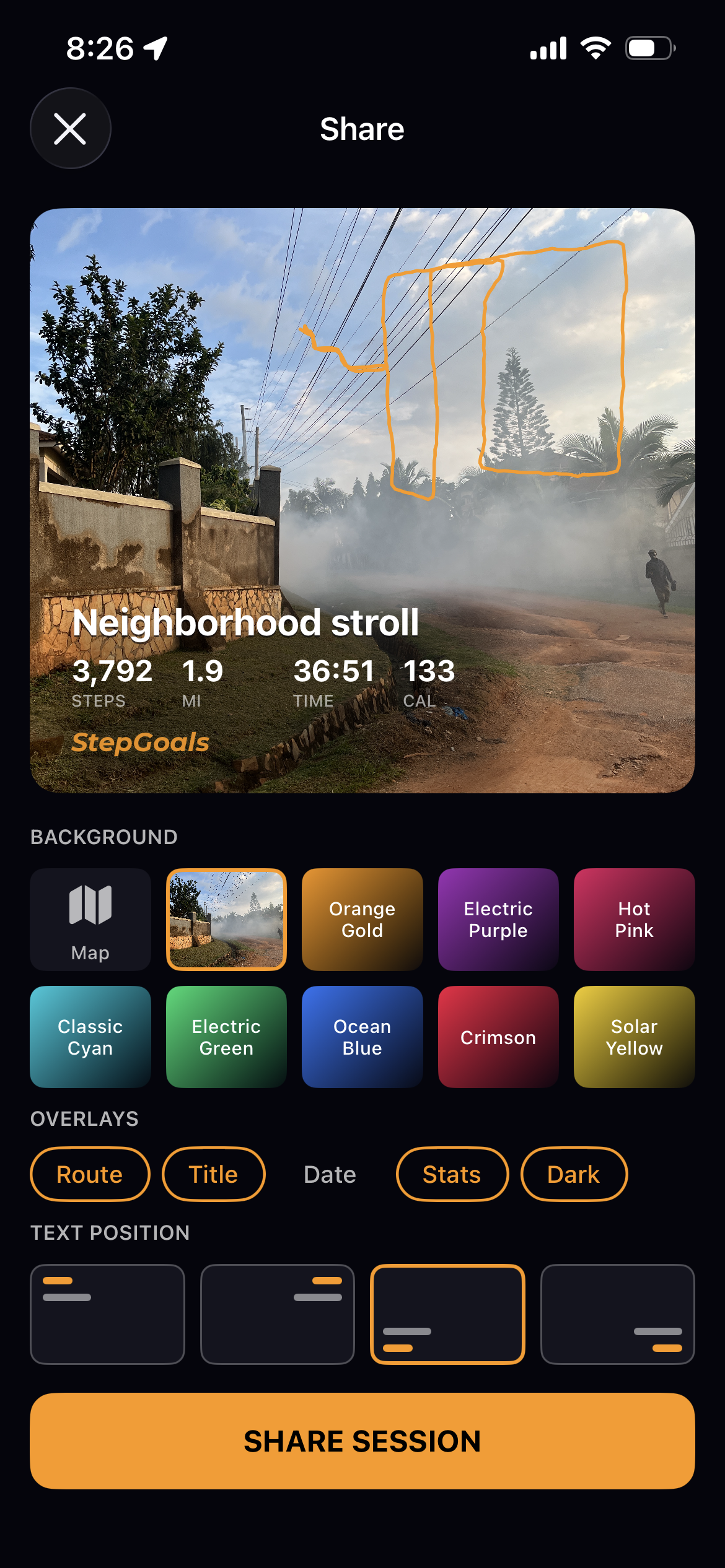
Sessions includes a dedicated share screen that produces a polished share card you can send to friends and family, post to social media, or save to your camera roll. The share screen gives you full control over how the card looks. You choose a background — the map view of your route, one of your session photos, or a range of color themes including Orange Gold, Electric Purple, Hot Pink, Classic Cyan, Electric Green, Ocean Blue, Crimson, and Solar Yellow. You then select which overlays to include: the GPS route, your session title, the date, your stats, and a dark shadow treatment. Text position can be adjusted to sit at the top, middle, or bottom of the card. The route drawing and text can also be easily resized with a pinch.
The result is a share card that actually looks good, contextual, branded with your route and customizable enough to match whatever aesthetic you prefer. Whether you're celebrating a personal best, sharing a scenic route with a friend (or socials), or just marking a walk you're proud of, the share card gives that moment something worth showing.
How Sessions Fits Into Your Daily Tracking
Sessions doesn't replace your daily step count, it adds to it. Steps logged during a GPS session are written back to Apple Health, which means they're included in your daily total and count toward your streak and daily goal. A morning run logged as a session and an afternoon of walking around your office both end up in the same daily picture. The two modes are complementary: Sessions gives you depth on individual outings, and daily tracking gives you the broader habit view over time.
If you also use the StepGoals Apple Watch app, your session steps are reflected there too as your wrist count updates throughout the day. For anyone building a structured walking or running habit, understanding what daily step targets actually mean becomes considerably easier when you can look back at real sessions and see how different types of outings contribute.
Sessions is available now in StepGoals version 2.0, free for all users.
Update to StepGoals 2.0 to unlock Sessions — GPS tracking, route history, and sharing are all waiting in the Sessions tab.